Have a funnel or customer journey in another whiteboard tool? You can bring it into Wireslate without rebuilding every step. Export the board as an image, or take a screenshot, then use Import with AI to create an editable Wireslate variant.
1. Export your board or take a screenshot#
In your current platform, export the part of the board you want to move as an image. If image export is not available, take a screenshot instead. PNG, JPEG, and WebP files are supported, up to 15 MB.
For a cleaner import, frame the whole funnel and crop away unrelated notes, toolbars, and other boards. Make sure labels and arrows are large enough to read. If the board is too wide or detailed for one image, import a few focused sections separately.
2. Choose Photo or Screenshot in Wireslate#
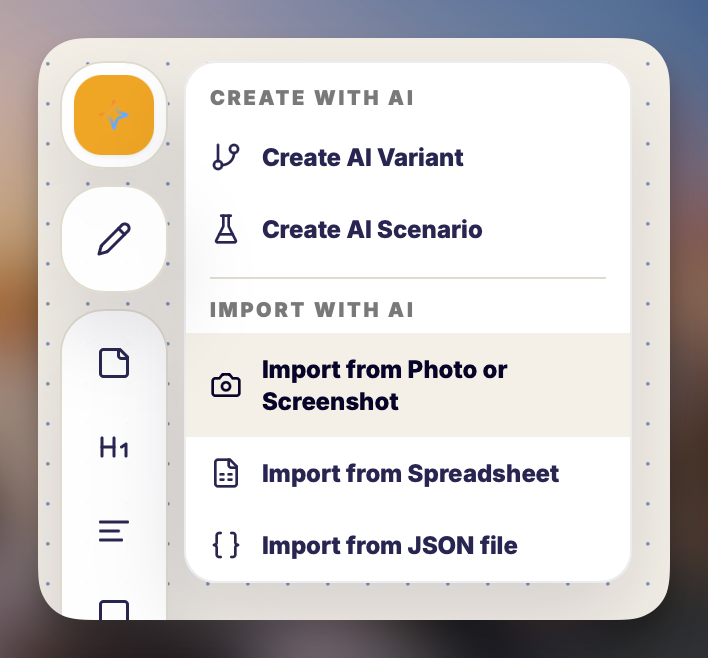
Open the Wireslate whiteboard where you want to work. Select Import in the top toolbar, then choose Import from Photo or Screenshot.
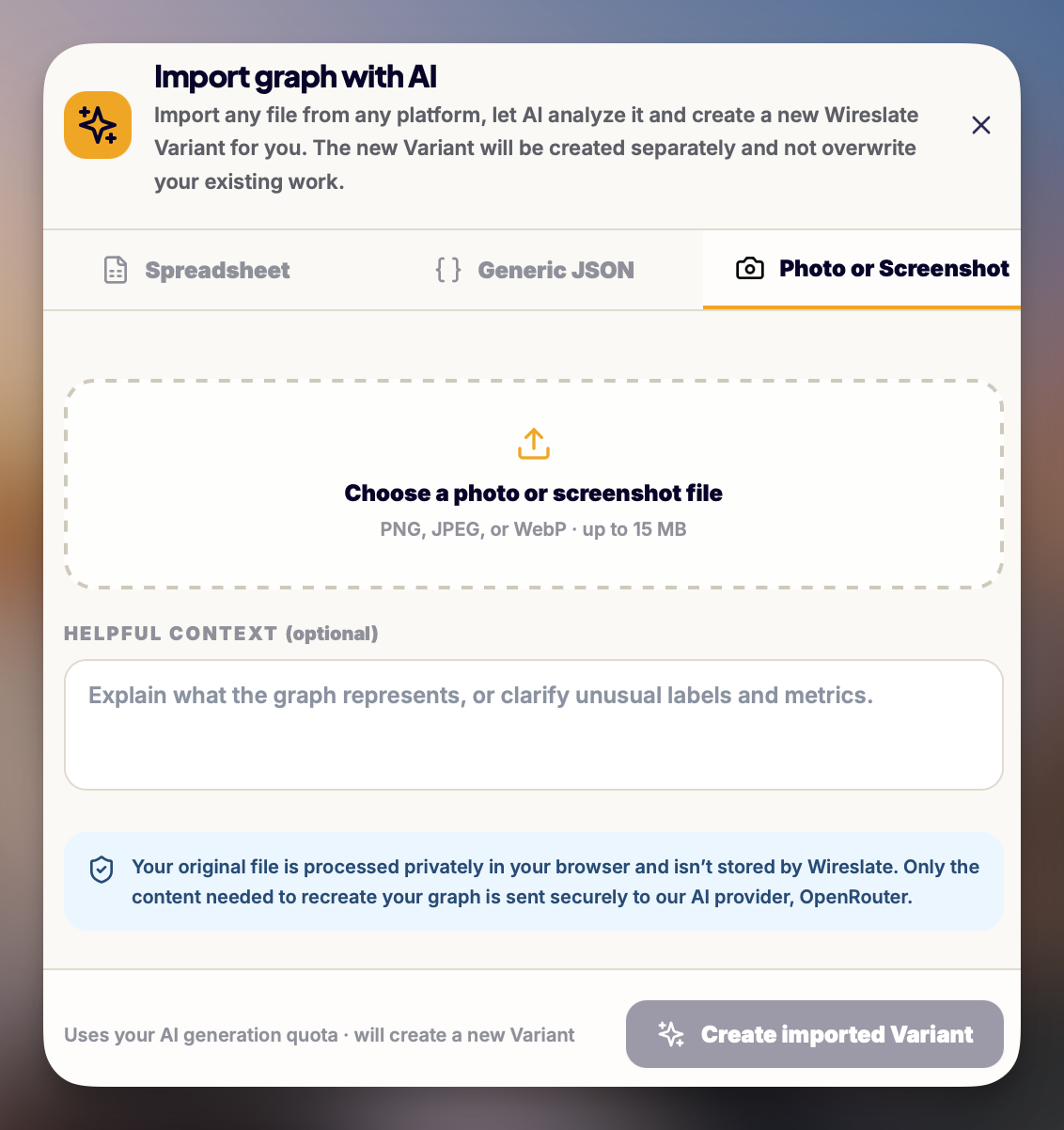
In the import window, open the Photo or Screenshot tab and choose your image file. Wireslate reads the image in your browser and shows a preview before you continue.
3. Add context and create the variant#
If a label, abbreviation, or number might be unclear from the image, explain it in Helpful context. For example, say what a particular step represents or whether a cost is total or per person. Then select Create imported Variant.
AI reads the shapes, labels, arrows, and visible metrics, then creates a new variant in your whiteboard. Your original variant stays as it is. The new version is editable, so you can correct details and adjust the layout after import.
What to expect#
The import recreates the meaning of your board using Wireslate components. It does not copy the original platform's colors, fonts, or styling exactly, and the layout may need a little adjustment.
Review the imported variant before relying on it. Check that the steps and connections match your source, confirm any numbers, and read the Import notes sticky note for assumptions AI could not resolve. If some shapes are unfamiliar, Wireslate may use a Custom component while preserving the label.
Tips for a cleaner import#
- Export at a size where every label is readable
- Include the arrows that show how people move between steps
- Keep the image focused on one funnel or connected flow
- Add context for abbreviations, unclear metrics, or steps that depend on one another
- Compare the new variant with your source before sharing it